
Plan a short story before spending credits
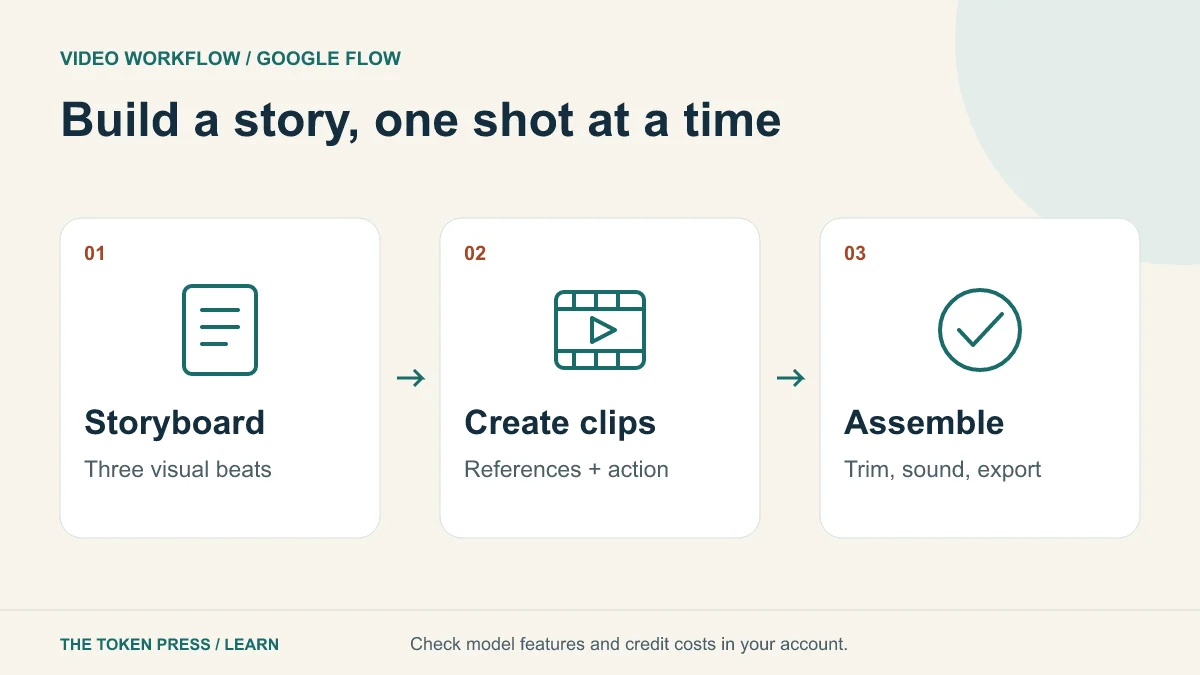
Our example is a 15-second fictional repair-workshop teaser. Scene one shows a broken lamp on a desk. Scene two shows tools beside the repaired lamp. Scene three shows the lamp switched on, leaving room for a separately added workshop title. These are three visual beats, not a request for one model to solve the entire production at once.
Choose the destination first: a vertical short, a landscape website video or a presentation clip. Write the message the viewer should remember, the desired aspect ratio and whether sound is essential. If you cannot explain the story in three sentences, simplify it before generating.
Check access and the actual model controls
Google describes Flow as a filmmaking tool with access dependent on age, region and account eligibility. Its current help lists eligible Google AI plans and some Workspace access. Check availability and the credit cost shown in your account before subscribing or generating; there is no universal unlimited-free assumption.
Flow’s creation guide currently supports text, ingredients, frames and other videos as inputs. In the standard prompt workflow, select Video and inspect the model, orientation, output count and duration. Available features differ by model and region. A tutorial naming one model is not evidence that every option exists in your account.
Create an asset and continuity sheet
Describe the lamp once: matte navy body, round cream shade, short cable, wooden desk, soft light from the left. Keep that description and an approved reference image with the project. Use reference material you own or are authorized to use.
List what must remain consistent between scenes: object proportions, background, lighting direction and palette. List what changes: the lamp is off, then repaired, then illuminated. Reference inputs can guide continuity, but you still need to inspect the output; they do not guarantee an exact match.
Generate one clear action per clip
Ask for a subject, action, environment and camera behavior. Prefer a modest action that can be judged at normal speed. A complex scene with several people, readable signs, moving hands and a camera orbit has many ways to fail.
PROMPT TO ADAPT
Landscape editorial clip of a navy desk lamp with a round cream shade on a wooden workbench. The lamp switches on, casting a warm pool of light. Camera stays steady with a gentle slow push toward the lamp. Soft daylight from the left; restrained navy, cream and teal palette. Keep the lamp shape consistent with the supplied reference. No lettering, logos or people.
Use frames and edits for specific problems
Flow’s frames workflow lets you provide start or end images and describe the transition between them. Use it when a particular composition matters. Save an approved frame as a reference for the next shot when helpful.
The current editing guide distinguishes features by model: extending existing footage is documented for Veo-generated clips, while certain edit workflows use Omni Flash. Consult the supported-features view before assuming a button is missing or purchasing more credits.
When reviewing a clip, identify a concrete defect: a flickering cable, a changing shade or an unwanted camera move. Ask for the smallest correction. Keep the approved version so a later edit does not erase the better result.
Assemble the story and keep the ending readable
Flow’s Scenebuilder can arrange and reorder clips, trim their edges, preview the sequence and download a scene. Use the full preview to check whether each cut advances the story. A good individual clip can still feel slow or confusing in the sequence.
For the 15-second exercise, begin with roughly five seconds per beat, then trim based on what a viewer needs to understand. Add exact dates and contact details as editable titles in a suitable editor. Leave enough time to read the final message instead of filling the whole ending with motion.
Check generated sound before adding narration or music. If a clip already contains sound, decide which track should lead and reduce competing audio. Captions should match the approved script and remain legible on the intended screen. Use only audio you are entitled to publish.
Budget for accepted clips, not just attempts
Suppose your chosen setting shows C credits per generation. Three scenes with two attempts each require 6 × C credits, before further edits or extensions. This is a planning formula, not a quote for any Flow model. Set a revision budget and stop to diagnose recurring problems instead of repeatedly generating the same weak prompt.
Track accepted clips separately from total outputs. If a simpler scene achieves the message with fewer attempts, it may be a better production choice. You can often improve a sequence more by trimming or changing a transition than by regenerating every shot.
Inspect the exported file before publishing
Download the completed sequence and play it from beginning to end outside the project preview. Check the first and last frames, crop, titles, audio, captions and any disclosure needed for a synthetic scene. Do not use an illustrative AI clip as if it were footage of an actual reported event.
- Objects and lighting remain consistent enough across cuts.
- The intended action is understandable without the prompt.
- There are no broken words, misleading logos or invented factual details.
- Speech, music and ambient sound do not compete.
- The export plays correctly at the destination’s aspect ratio.
- A website uses a lightweight poster and deliberate playback rather than a heavy autoplay background.
Sources & further reading
- Google Flow: access requirements and credits
- Google Flow: creating clips, ingredients and frames
- Google Flow: editing clips and building scenes
Educational content. Examples are illustrative. Protocols, products and rules can change; consult the linked documentation for current details.