
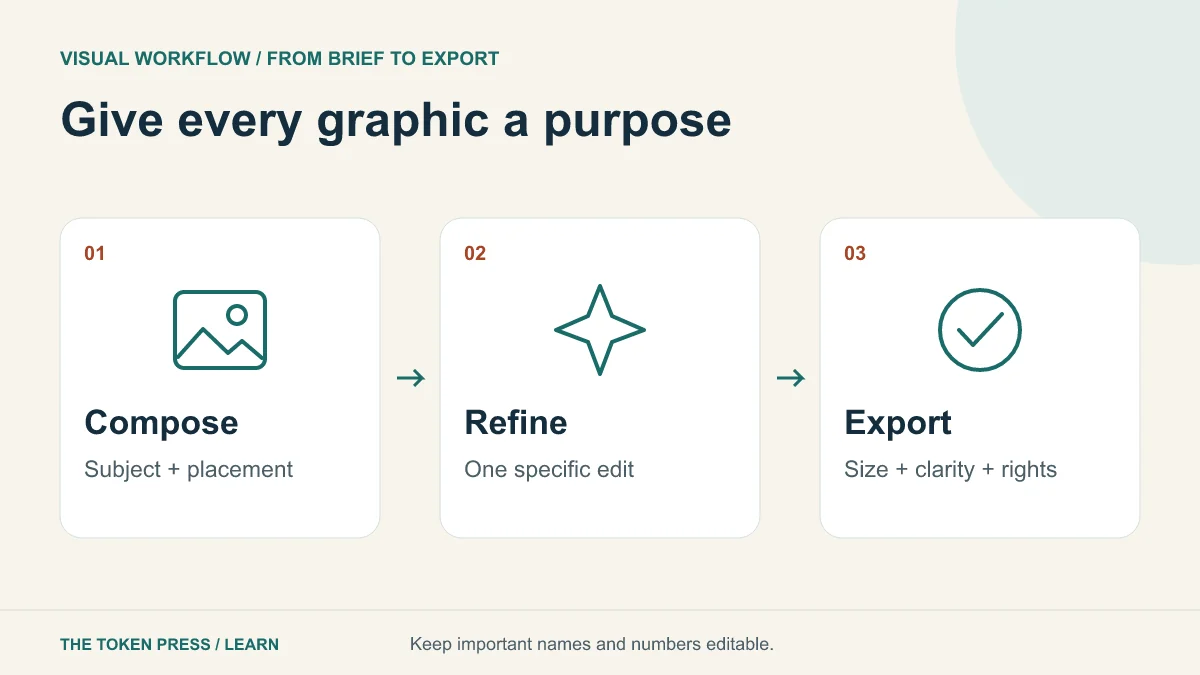
Start with the job the graphic must do
A graphic can explain a process, establish a mood or help a reader recognize a subject. Pick one primary job. For our fictional repair workshop, an illustration of tools and a repaired lamp may support the page; a diagram showing “bring item, inspect, repair, collect” explains a process.
Write the placement and crop before generating. A wide website banner and a square social post need different compositions. Keep important subjects away from edges that will be cropped on a phone. Decide where headings will sit so you do not cover the useful part of the image.
Use an image tool for pixels and code for precise structure
ChatGPT supports generating and editing images where the feature is available. Its documentation recommends describing the intended result and supplying a reference when transforming an existing image. An ordinary text reply describing a picture is not the picture itself.
Raster formats such as PNG and WebP contain pixels. SVG can describe vector shapes and text, which is useful for simple charts, icons and flow diagrams. Renaming a PNG to .svg does not make it a vector asset. For exact data labels or a structured payment diagram, an editable vector or HTML diagram may be easier to maintain than generated lettering.
An original prompt you can adapt
Give the subject, composition, style, palette and constraints. Avoid asking for several unrelated styles in one prompt. The example below leaves a quiet area for a heading that will be added as real text in the website.
PROMPT TO ADAPT
Create an original wide editorial illustration for a community repair workshop. Show one repaired desk lamp, a small screwdriver and neatly arranged parts on a warm cream surface. Use dark navy, muted teal and a restrained orange accent. Place the objects mainly on the right, leaving the left third calm for a website heading. No text, logos, signatures or recognizable people. Keep the shapes readable at small size.
Review first, then request a focused edit
Inspect the output at its intended size. Look for impossible object connections, distracting detail, accidental text and shapes that resemble a protected brand mark. A beautiful large preview may become visual noise when reduced to a card.
Ask for one specific correction while identifying what should remain. For example: “Keep the lamp and camera angle. Remove the extra cable loop and make the left third simpler.” Supply the actual current image as the reference, so the edit is not reconstructed only from a description.
For a consistent set, save the palette, framing and approved reference. Request the same system for each subject, but inspect each output independently. Similar prompts do not guarantee identical composition or color.
Keep names, numbers and important copy editable
AI-generated lettering can be useful in a draft, but review every character. For the workshop date, address, prices and call to action, use editable text in your design or website rather than relying on letters inside the image. This also makes later changes less expensive.
If a visual contains data, verify the underlying numbers before styling it. A bar chart should encode values consistently; a three-step process should show the correct sequence. Attractive arrows do not establish that the process is accurate. A diagram needs the same factual review as its accompanying paragraph.
Export for the actual destination
Keep an editable master and export a separate delivery copy. Use a format that supports the properties you need: transparency for a cutout, a compact web format for a page image, or a vector for a simple scalable diagram. Check the exported file rather than only the editor preview.
For a website, set width and height so the page can reserve space before the image loads. Compare a compressed export at normal viewing size with the master. If text or edges become muddy, adjust the settings. Smaller file size is useful only while the graphic still communicates clearly.
Write alt text that explains the image’s relevant meaning. If the picture is purely decorative and nearby text already provides the information, avoid making a screen reader repeat a long decorative description.
Review rights, context and provenance
Use reference material you are entitled to use, and get permission where a person’s likeness or voice is involved. A generated image is not evidence that an event happened. Label illustrative or synthetic scenes where a reader could mistake them for reporting.
Save the prompt, source references, approved version and any required attribution. Do not remove an existing photographer’s credit when replacing a file. Provider terms and applicable rights still matter; an AI output is not an automatic rights clearance.
Five-minute practice: improve one weak graphic
Take a draft card and reduce it to phone width. Identify the one idea it communicates. Remove a decorative element, strengthen the important shape and move any necessary words into editable text. Compare before and after with the same crop.
- The subject is recognizable at card size.
- Names and numbers are correct and remain readable.
- The export has the intended dimensions, format and transparency.
- The file is appropriately compressed without visible damage.
- Alt text and attribution fit the actual image and its context.
Sources & further reading
Educational content. Examples are illustrative. Protocols, products and rules can change; consult the linked documentation for current details.